Tuesday, March 3

Siebel Integration - Coming soon

Hi Readres,

I am going to post all about siebel integration from April, Stay tuned :)

Thanks
 

Friday, April 13

How to change the font,size,color of the field / control caption

Hi All,Sometimes we need to change the properties of siebel applet controls and below is the solution

Solution:

For the field for which we have to change the Font / Size / Color set the following HTML tags in the caption [string override] of the field properties.

1. "label style"
2. "span style"
3. "font face" & "color"
4. <b> & </b> to bold the text
5. font onmouseover & onmouseout
6. <br/> for line break in case of long captions

Examples:

<label style="background-color:red">fieldname</label>
<span style="background-color: red">fieldname</span>
<font face="fontname" size=26 color=yellow>fieldname</font>
<font onmouseover="style.color='green'" onmouseout="style.color='red'">fieldname or controlname</font>
field<br/>name<br/>is too long

Integrating Siebel with Fax server:

Hi Readers, here is an interesting topic which will be helpful to many of you at least in future :)

The objective of this post is to describe the steps involved in integrating Siebel Application with Fax Server to send the Fax messages to the customer when a Fax Campaign is launched in Siebel.

1.   Requirement overview :  In this scenario, we need to install the following

  1. Siebel eCommunications– Used by the internal employees to launch the campaigns.
  1. Microsoft Exchange Server – Used to receive the fax message in the form of the Email to a dedicated email address of the MS Exchange. The format of the Email Address is Fax Number + Domain.
  2. Faxination Server – Faxination Server connects to email box on MS exchange server and receives the email messages. It converts email message to Fax message and sends the fax to the customer through Fax server. 
  3. Fax Server – Used for delivering the Fax messages to the targeted recipient.

Roll up - Business Component User Property

 
The main functionality of the RollUp user property is to reflect the sum of the value under one control for a form applet against the values entered for a particular list column on the list applet. The value can be either integer or a decimal point number upto any decimal places. This property holds good for any of the Business Component Classes.

Thursday, August 11

How to debug browser script in Siebel ?

Generally we will debug browser script using alert() method,but recently I came to know that an interesting feature in IE8 - which is very useful in debugging browser script,I thought many of developers not aware of this useful feature from IE so writing this as a post.

 We can debug a browser script using IE8 (Internet Explorer 8) developer tool instead of alert() method,The Developer tool is available as free plug-in for IE and Firefox of other versions and its a in-built  feature for IE8

Follow the below steps to happily debug your browser script.

1) Compile your script and run genbscript utility for your script,if you are not aware of running genbscript see below example.  

Ex:  Go to commandpromopt and run below command by changing parameters as per your environment.

C:\Siebel\8.1\Client_1\BIN\genbscript.exe C:\Siebel\8.1\Client_1\BIN\esn\scommwireless_ESN.cfg C:\Siebel\8.1\Client_1\public\esn


2) Login to your local or dedicated client.

3) Navigate to the view where your browser script is written.

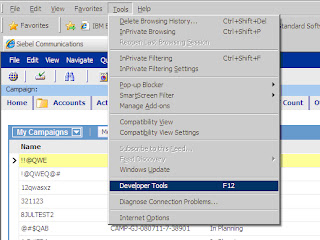
4) Select Tools --- > Developer Tools on your IE 8 explorer. (or press F12),Developer Tool window will open
Blogger Widgets